
 Posted by
 I had an old RAR file on my computer with some work notes, images, and project files inside. The problem was that I forgot the password and could not open it anymore.
I tried a few usual passwords, including birthdays, simple numbers, and old passwords I had used before. Nothing worked. After that, I stopped guessing manually and used Dr.Archive to recover the RAR password.
Why I Used Dr.Archive
I wanted a local desktop tool because I did not want to upload my RAR file to an online website.
Dr.Archive supports RAR/RAR5 files, Dictionary Attack, Mask Attack, and Brute-force Attack. It also supports GPU/CPU acceleration, and when GPU acceleration is available, the speed can reach millions of password checks per second.
Since I still remembered part of the password, I chose Mask Attack.


How to Unlock RAR File Password with Dr.Archive
Step 1: Add the Locked RAR File
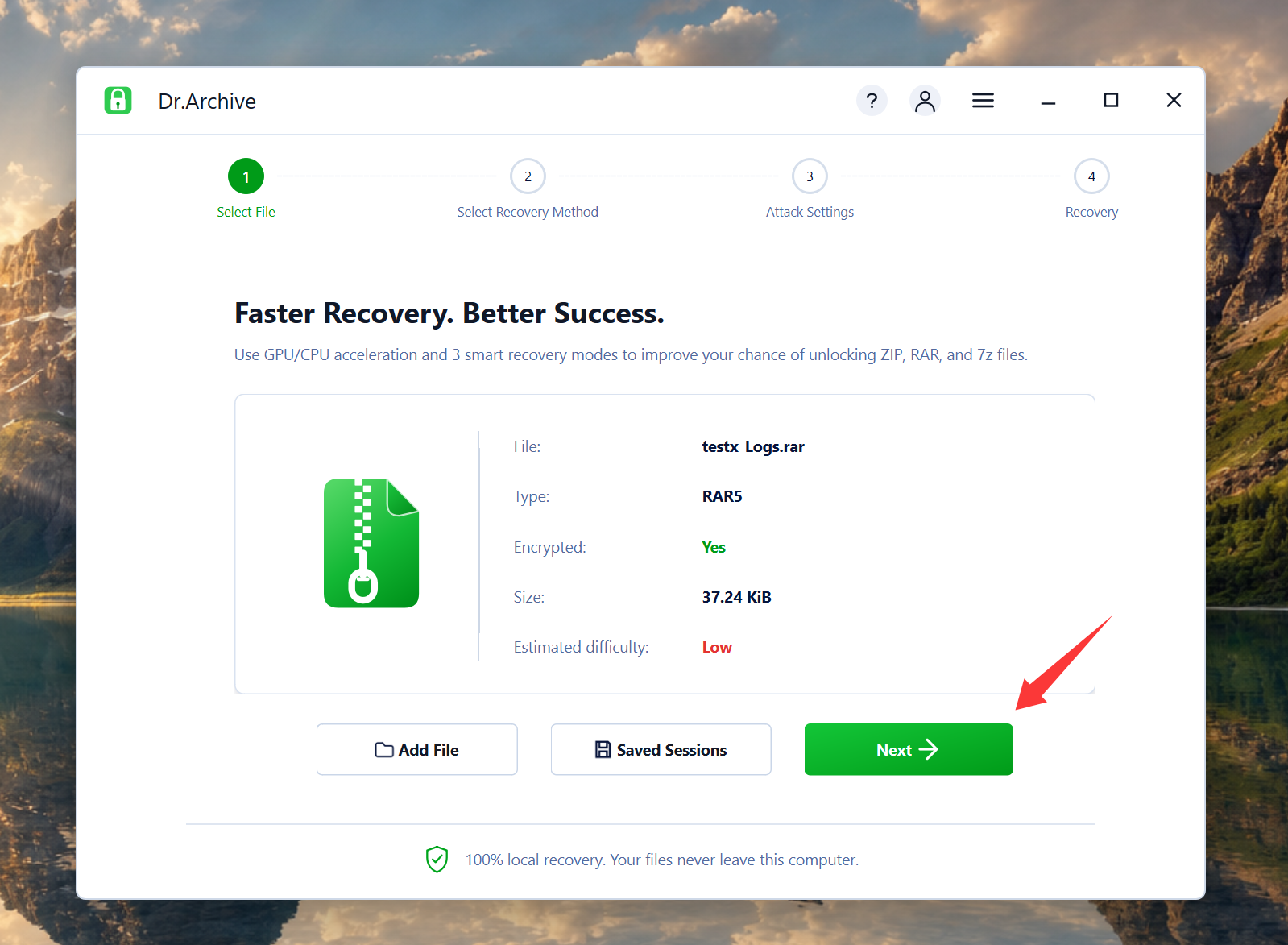
Open Dr.Archive and click Add File. Select the locked RAR file from your computer.
Dr.Archive will show the file name, archive type, encryption status, size, and estimated difficulty.
Step 2: Choose a Recovery Mode
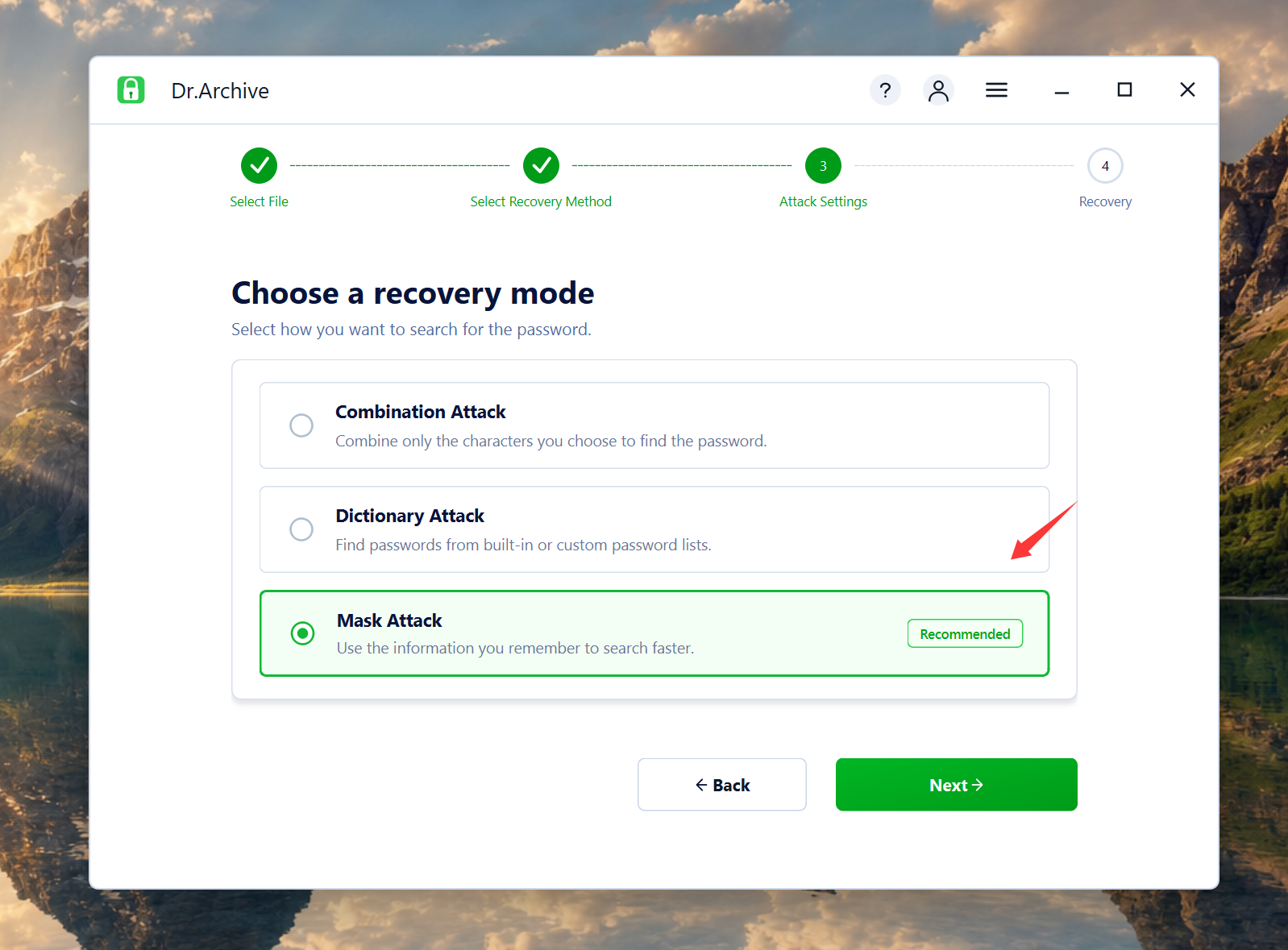
Next, choose how you want Dr.Archive to search for the password.
Use Dictionary Attack for common words or old passwords. Use Mask Attack if you remember part of the password. Use Brute-force Attack if you remember nothing.
For my case, I selected Mask Attack.
Step 3: Enter Password Clues
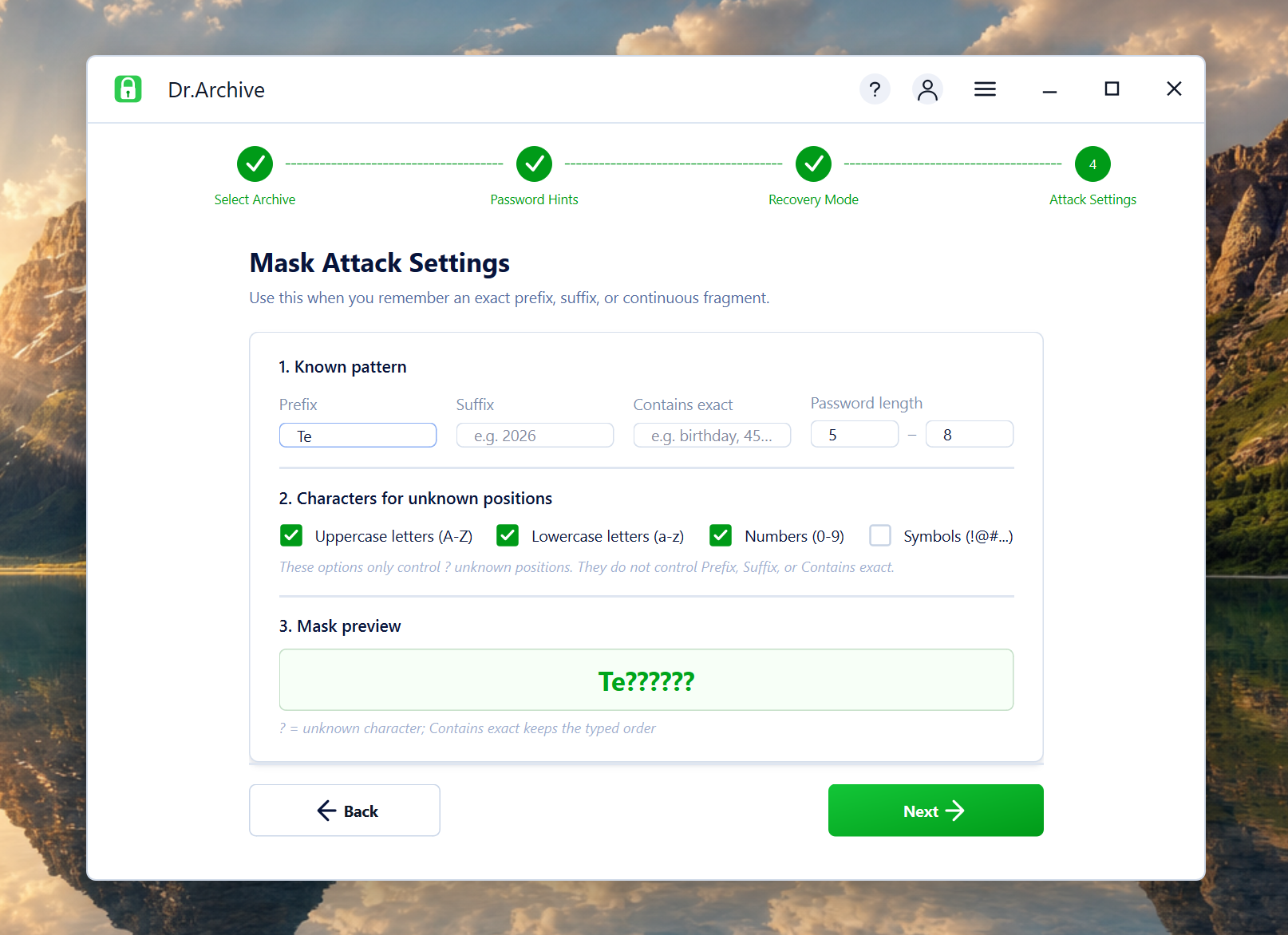
In Mask Attack settings, enter what you still remember, such as prefix, suffix, length range, or character types.
This helps Dr.Archive search only the possible passwords that match your clues.
Step 4: Check GPU Acceleration
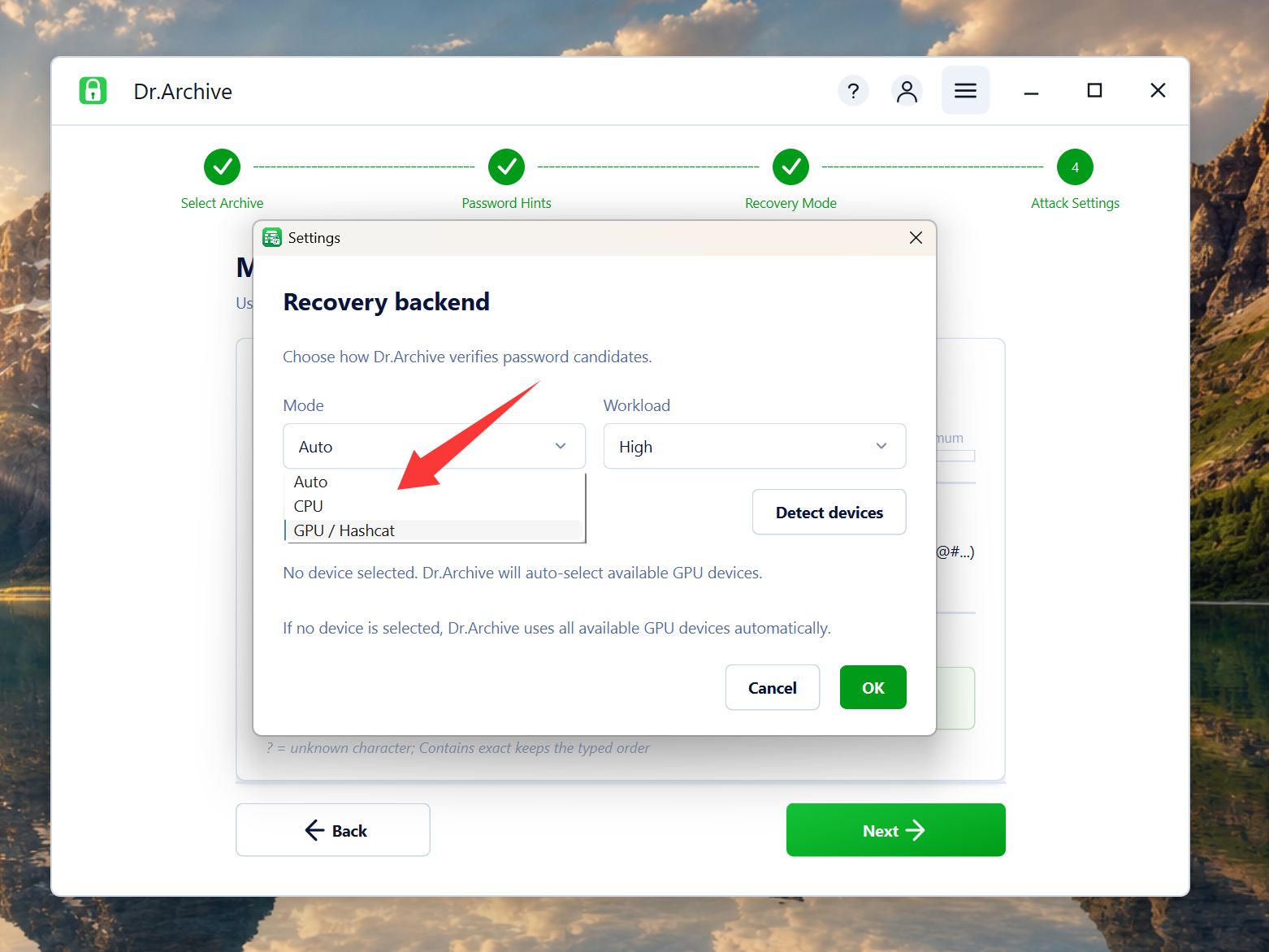
Before starting, open the settings menu in the upper-right corner.
Dr.Archive uses Auto mode by default, so it can use available GPU devices automatically. You can also choose CPU or GPU / Hashcat manually.
Step 5: Start Recovery
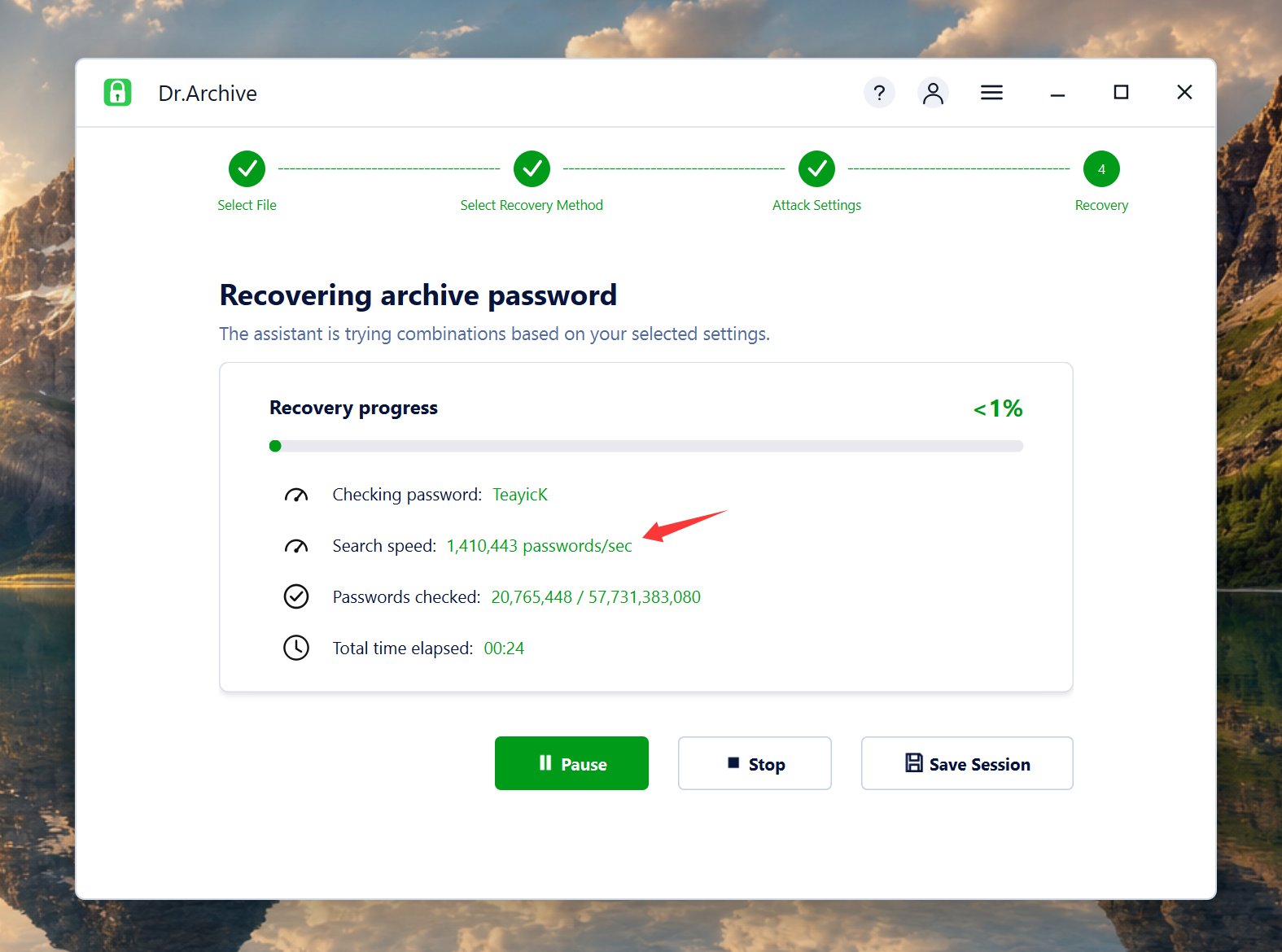
Click Next to start recovering the RAR password.
Dr.Archive will show the current password being checked, search speed, checked passwords, elapsed time, and progress.
Step 6: Copy the Password
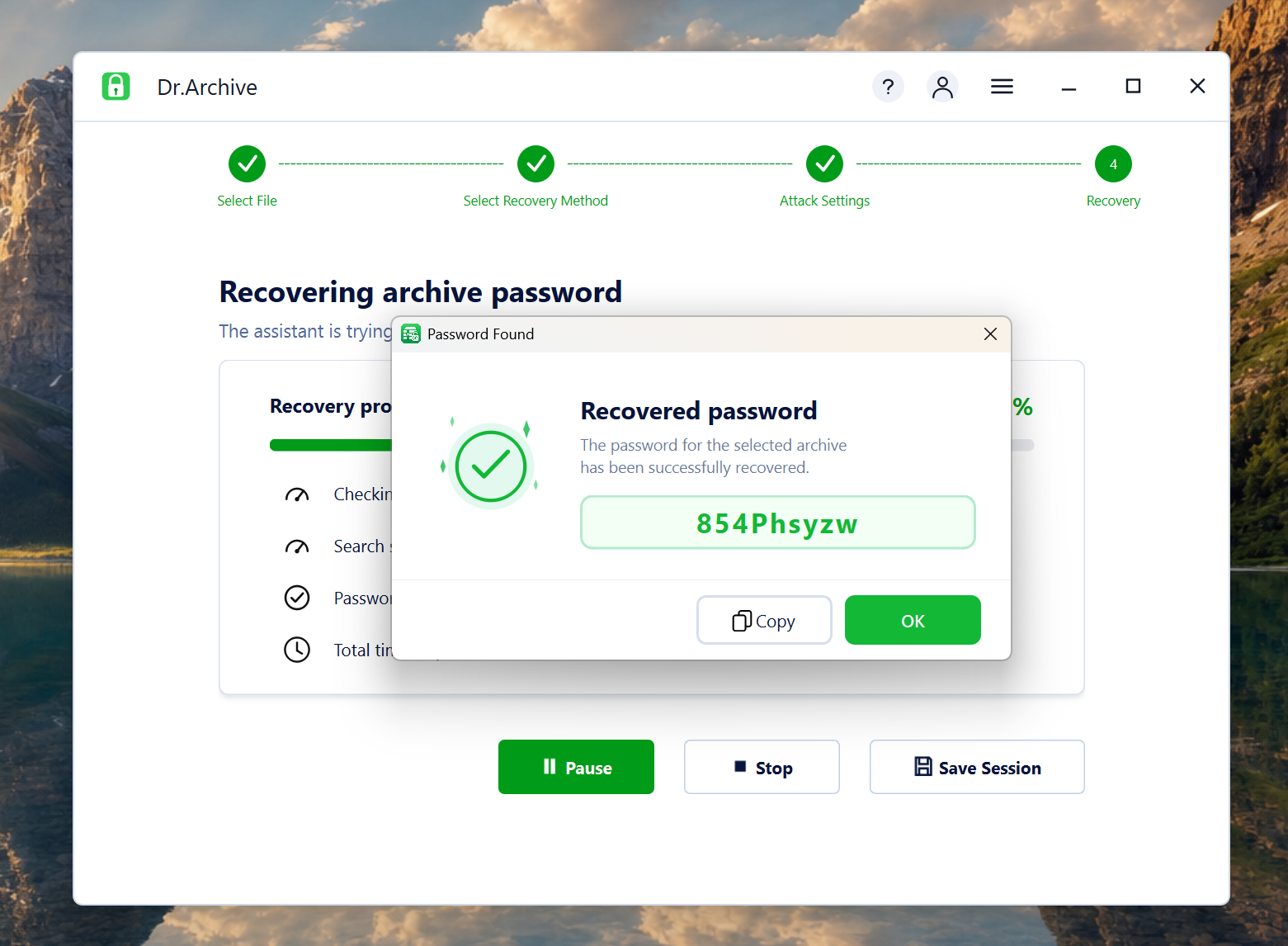
When the password is found, Dr.Archive will show it in a result window.
Click Copy, open the RAR file again, paste the password, and extract the files normally.
My Experience
Dr.Archive made the process much easier than guessing passwords one by one. I did not need command lines or technical knowledge.
The most useful part was Mask Attack. Even small clues, like the first character, last few letters, or password length, helped reduce the search range.
Final Thoughts
Forgetting a RAR password can be frustrating, especially when the archive contains important files.
Dr.Archive gives you a simple way to recover the password. Add the RAR file, choose a recovery mode, enter any clues you remember, and let the tool check possible passwords for you.
It is not instant magic, but if you remember part of the password, Dr.Archive is worth trying.




- Secured Shopping
- Customer Service
- Lifetime Free Upgrade
- Satisfied Customers


